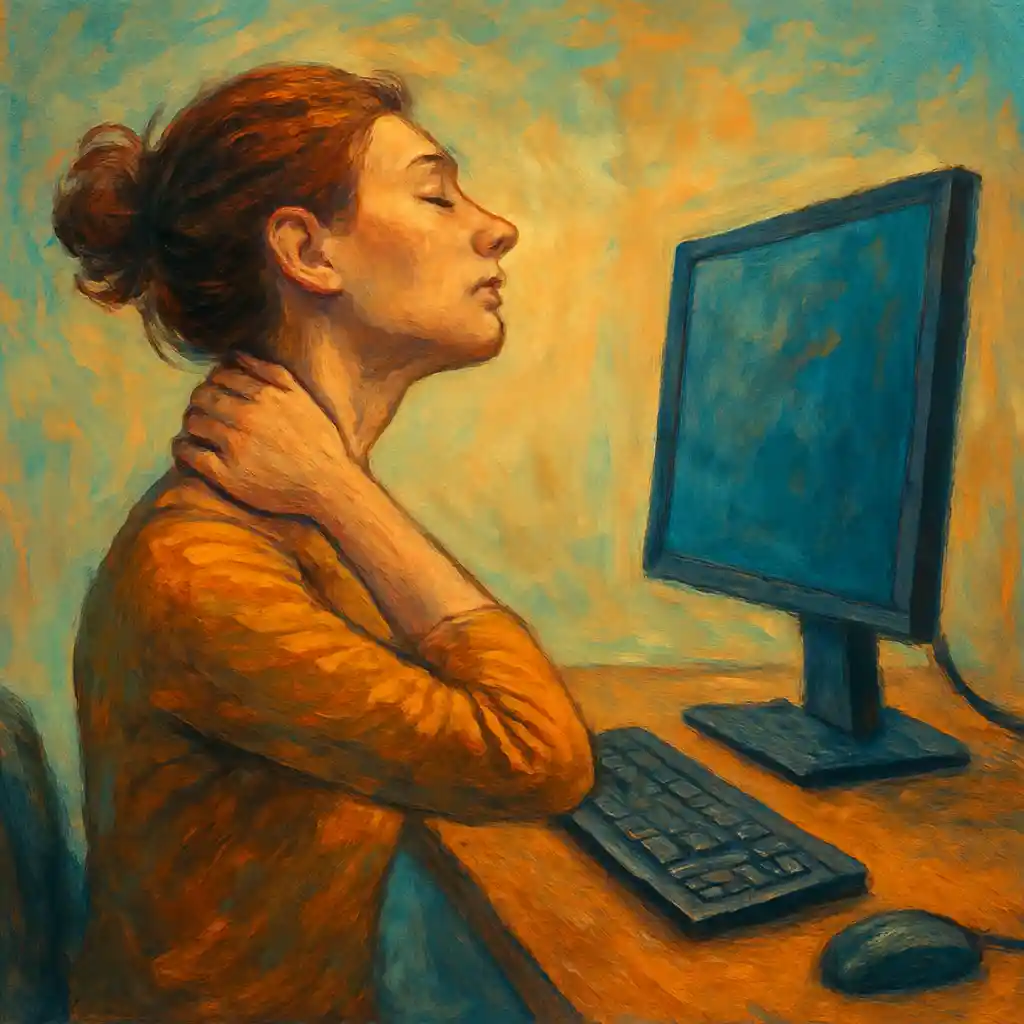
Neck pain is one of the most common discomforts for older adults. It can make daily life harder, reduce sleep quality, and even affect mood and energy. At the same time, screens are now part of almost every day. People use computers for banking and emails, tablets for reading, phones for messages, and TVs for entertainment and news.
A small change can bring a big improvement: screen height.
When a screen is too low, the head tilts forward and down. This position may feel normal at first, but it places extra load on the neck and upper back. Over time, muscles become tired, joints feel stressed, and pain can appear. When a screen is placed at a healthier height, the neck can stay in a more neutral position. This helps the body relax and lowers tension.
This article gives clear, step-by-step advice for seniors and caregivers. It explains ideal screen height, easy adjustments at home, helpful tools, safe stretches, and daily habits that support long-term comfort.
Why screen height matters more with age
The “forward head” problem
The human head is heavy. When the ears are above the shoulders, the neck carries weight in a balanced way. When the head moves forward, the neck must work much harder to hold it up. Looking down at a phone or laptop for long periods often causes this forward head posture.
This can lead to:
- tight neck and shoulder muscles
- stiffness in the upper back
- headaches that start from the neck
- pain between the shoulder blades
- tingling or discomfort in arms in some cases
- faster tiredness during reading or screen use
Why seniors often feel it sooner
Many seniors are more sensitive to screen-related strain because of:
- natural changes in the spine and joints
- less muscle strength in the upper back and core
- slower recovery after repetitive strain
- vision changes that lead to leaning forward to see better
- arthritis or previous neck and shoulder issues
The goal is not perfect posture every second. The goal is a comfortable, supported position that reduces stress on the neck.
The main ergonomic goal in one sentence
Place the screen so the eyes look forward with a relaxed neck, shoulders down, and back supported.
Everything else supports that goal.
The ideal screen height for neck comfort
A helpful rule for most seniors is this:
- The top of the screen should be at, or slightly below, eye level.
- The center of the screen should be a little below eye level, since eyes naturally look slightly downward.
This keeps the neck closer to neutral and reduces bending.
A simple way to check screen height
- Sit in the chair in a comfortable way.
- Place both feet on the floor or on a footrest.
- Relax the shoulders.
- Look straight ahead.
Now check the screen:
- If the top of the screen is far above eye level, the neck may tilt back.
- If the screen is below eye level, the neck will tilt forward and down.
A practical target:
- The top edge of the screen is around eyebrow height
- or the top edge is 2 to 5 centimeters below the line of sight
Small differences are normal. Comfort is the final guide.
The ideal screen distance
Distance also affects neck posture. When a screen is too far away, people often lean forward. When it is too close, the head may pull back or the eyes feel strained.
A safe and easy guideline:
- Place the screen about an arm’s length away.
For many people, that is about 50 to 70 centimeters for a computer monitor. Phones and tablets are often closer, but holding them too close often increases neck bending. The solution is usually not distance alone. The solution is height plus support.
Device-by-device setup that works in real life
1) Desktop computer or separate monitor
This is often the easiest to set up well.
Recommended setup
- Monitor height: top of screen at eye level or slightly below
- Monitor distance: arm’s length
- Screen tilt: slightly back, so the face stays relaxed
- Keyboard and mouse: at a height where elbows are near the body and wrists stay straight
Extra comfort details
- Keep shoulders low, not lifted.
- Keep elbows around a 90-degree angle.
- Use the chair back support to avoid leaning forward.
Easy height hacks
- Monitor riser
- Adjustable monitor arm
- A stable stack of books
- A strong storage box made for weight support
Stability matters. The screen should not wobble.
2) Laptop setup
Laptops cause neck pain for a simple reason. The screen and keyboard are attached. If the screen is at the right height, the keyboard becomes too high. If the keyboard is at the right height, the screen becomes too low.
The best solution
- Raise the laptop so the screen reaches eye level
- Add an external keyboard and mouse
Low-cost height hacks
- A laptop stand
- A firm box or stack of books
- A stable kitchen shelf riser
- A folding stand designed for laptops
Important detail When using an external keyboard, keep it low enough so shoulders stay relaxed and elbows stay near the body.
3) Tablet setup
Tablets are great for reading, but they often sit flat on a lap. That position pulls the neck down.
Better tablet habits
- Use a tablet stand on a table
- Use a pillow stand made for reading
- Place the tablet on a stable surface at chest height or higher
- Increase font size so leaning forward is not needed
A strong option for comfort
- A stand plus a separate Bluetooth keyboard for longer typing
4) Phone setup
Phones are the biggest cause of “text neck” because they are small and used low.
Neck-friendly phone habits
- Bring the phone up closer to eye level
- Support the arms on a pillow or armrest when possible
- Increase text size and brightness to avoid leaning in
- Use voice-to-text for longer messages
- Use a phone stand for calls or videos
Even short phone sessions add up. A small posture change can reduce daily strain.
5) TV setup
TV height matters too, especially for seniors who watch for long periods.
Comfort guidelines
- The TV screen center should be close to eye level when seated
- A small downward gaze is fine
- Avoid placing a TV too high above a fireplace, since it forces the neck back
Helpful tips
- Use a TV wall mount with tilt
- Raise or lower the TV on a stable console
- Add supportive pillows behind the upper back so the neck does not push forward
For long viewing, back support is as important as screen height.
Lighting and glare reduction that protects the neck
Glare makes people squint and lean forward. That often creates more neck tension.
Ways to reduce glare
- Place screens to the side of windows, not directly in front of them
- Use curtains or blinds during strong sunlight
- Reduce overhead light reflection on the screen
- Use an anti-glare screen protector if needed
- Adjust brightness so the screen is comfortable, not too bright and not too dark
Simple comfort rule When the eyes feel relaxed, the neck often relaxes too.
A complete ergonomic checklist for seniors
This checklist combines the most important points into one place.
Screen
- Top of screen at or slightly below eye level
- Screen about an arm’s length away
- Text size large enough to read without leaning forward
- Minimal glare
Chair and sitting position
- Back supported by the chair
- Hips all the way back in the seat
- Feet flat on the floor or on a footrest
- Shoulders relaxed, not raised
- Head balanced above the shoulders as much as possible
Keyboard and mouse
- Close enough to avoid reaching
- Elbows near the body
- Wrists straight, not bent up
- Mouse easy to grip, not too small
Breaks
- Short movement breaks often
- Gentle neck and shoulder movements
- Eye rest during long sessions
Building good habits without discomfort
Make changes gradually
If the neck has been in a forward position for years, a sudden change can feel strange. The muscles need time to adjust.
A gentle plan:
- Raise the screen a little for several days
- Increase height again if it feels better
- Stop at the height that feels comfortable and natural
Comfort should improve, not worsen.
Use reminders
Many seniors benefit from simple reminders:
- A timer every 30 to 45 minutes
- A note on the screen corner
- A posture reminder app
The goal is not strict posture. The goal is to avoid long, frozen positions.
Use the “movement snack” idea
A movement snack is a short, easy activity that takes less than one minute. Small movements often prevent stiffness better than one long stretch at the end of the day.
Examples:
- shoulder rolls
- slow neck turns
- standing up and sitting down once
- walking to get water
Gentle exercises and stretches for neck pain relief
These exercises are simple and usually safe for seniors. They should feel gentle, not painful. Slow movement and calm breathing help the most.
If any movement causes sharp pain, dizziness, numbness, or stronger symptoms, it is safer to stop and talk with a healthcare professional.
1) Shoulder rolls
Helps release shoulder tension that pulls on the neck.
Steps:
- Sit or stand tall.
- Lift shoulders slightly up.
- Roll them back in a circle.
- Lower them down.
Do:
- 8 to 10 slow circles backward
- then 8 to 10 circles forward
2) Neck rotation
Helps reduce stiffness.
Steps:
- Sit tall with shoulders relaxed.
- Turn the head slowly to the right.
- Hold for 5 to 10 seconds.
- Return to center.
- Turn slowly to the left.
Do:
- 3 to 5 times each side
Keep the movement slow and easy.
3) Side neck stretch
Targets tight muscles on the side of the neck.
Steps:
- Sit tall.
- Let the right ear move gently toward the right shoulder.
- Keep the shoulder down.
- Hold for 15 to 20 seconds.
- Repeat on the other side.
Do:
- 2 times each side
No pulling is needed. The weight of the head is enough.
4) Chin tuck
This is one of the best exercises for forward head posture.
Steps:
- Sit with the back supported.
- Look forward.
- Gently pull the chin straight back, like making a soft double chin.
- Hold 3 to 5 seconds.
- Relax.
Do:
- 8 to 12 times
The movement is small. The goal is alignment, not force.
5) Shoulder blade squeeze
Supports upper back muscles that help hold the head and shoulders in a better position.
Steps:
- Sit or stand tall.
- Pull the shoulder blades gently back and down.
- Hold 5 seconds.
- Relax.
Do:
- 8 to 12 times
Keep the shoulders low. Avoid shrugging.
6) Chest opener
Tight chest muscles often pull shoulders forward.
Steps:
- Stand in a doorway.
- Place forearms on the door frame.
- Step forward slowly until a gentle stretch is felt in the chest.
- Hold 15 to 20 seconds.
Do:
- 2 times
This stretch should feel open and easy.
Rest, recovery, and relaxation for neck comfort
Heat and cold for sore muscles
Both can help. The best choice depends on the type of discomfort.
Heat
- Helps relax tight muscles
- Good for stiffness
Use:
- a warm towel
- a heat pack
- warm shower
Typical time:
- 15 to 20 minutes
Cold
- Helps calm irritation and reduce swelling
- Good after a flare-up
Use:
- a cold pack wrapped in a cloth
Typical time:
- 10 to 15 minutes
Do not place extreme heat or cold directly on the skin.
Relaxation that reduces neck tension
Stress often shows up in the neck and shoulders. Calm breathing can reduce muscle tension.
A simple breathing pattern:
- Breathe in through the nose for 4 seconds
- Breathe out slowly for 6 seconds
- Repeat for 1 to 2 minutes
Relaxation works even better when the screen is set at a good height, since the body is not fighting gravity as much.
Sleep posture that supports the neck
Screen habits matter, but sleep posture can also increase or reduce neck pain.
Helpful sleep positions
- Sleeping on the back with a supportive pillow
- Sleeping on the side with a pillow that fills the space between head and shoulder
Positions that often increase neck strain
- Sleeping on the stomach, since the head turns to one side for hours
Pillow tips
- The pillow should support the neck, not push the head forward
- A pillow that is too high can bend the neck
- A pillow that is too flat can let the head fall sideways
Some seniors like a contoured cervical pillow, but comfort and support are more important than the pillow type.
Safety precautions for seniors
Comfort should improve with ergonomic changes. Safety and stability come first.
Key safety points
- Avoid unstable stacks under monitors or laptops
- Avoid sudden large posture changes that create new pain
- Make sure cords do not create a trip hazard
- Use a chair with stable support
- Stop any exercise that causes sharp pain or dizziness
When to seek medical advice
- pain that becomes worse over time
- numbness or tingling in the arms or hands
- weakness in the arm or hand
- severe headaches linked with neck pain
- pain after a fall or injury
Professional support can be very helpful, especially when there is arthritis, osteoporosis, or a history of spine problems.
Tools and technology that make screen alignment easier
Simple, low-cost tools
- sturdy books or boxes for raising a screen
- laptop stand
- tablet stand
- phone stand
- external keyboard and mouse
- footrest or a small stable stool
- lumbar support cushion
Ergonomic upgrades for long-term comfort
- adjustable monitor arm
- ergonomic chair with good back support
- sit-stand desk for changing position
- larger monitor for easier reading at a better distance
Apps and settings that reduce strain
- screen time reminders
- posture reminder apps
- larger font settings
- voice-to-text options
- blue light filters in the evening for comfort
Small settings changes often reduce the need to lean forward.
Real-life examples of small changes with big results
Example 1: The laptop reader A senior who used a laptop at the kitchen table raised the laptop on a stand and added a basic external keyboard. The screen reached eye level, shoulders relaxed, and neck pain reduced during long email sessions. The change took less than ten minutes to set up.
Example 2: The tablet newspaper habit A senior who read news on a tablet in a low chair started using a tablet stand on a side table. Font size increased, and reading time became more comfortable. Less leaning forward led to less stiffness in the neck and upper back.
Example 3: The TV adjustment A senior who watched TV from a recliner noticed neck discomfort from a high-mounted screen. The TV was moved to a lower position and tilted slightly. With a small cushion supporting the upper back, the neck stayed more neutral and felt better after long viewing.
These examples show a clear pattern. The body often responds quickly when the head does not need to tilt forward for long periods.
A simple daily plan for a pain-reduced screen life
This plan keeps things realistic and easy.
Morning
- Set up the screen at eye level
- Do 5 chin tucks and 5 shoulder rolls
During screen time
- Take a short movement break every 30 to 45 minutes
- Keep text size large enough for relaxed reading
- Keep shoulders down and back supported
Evening
- Use a warm pack for 15 minutes if the neck feels tight
- Do gentle side neck stretches
- Adjust pillow and sleep position for neck support
Consistency matters more than intensity.
Conclusion
Screen height is one of the simplest and most powerful changes for reducing neck tension, especially for seniors. When the screen is closer to eye level, the neck stays in a healthier position. Muscles work less, posture improves naturally, and daily comfort often increases.
The best results come from a complete approach:
- correct screen height and distance
- supportive sitting and relaxed shoulders
- reduced glare and better text size
- regular movement breaks
- gentle stretches for strength and flexibility
- good sleep posture and recovery
These steps do not require perfect posture or expensive equipment. A stable stand, a few settings changes, and small daily habits can bring real relief.
Implement one adjustment at a time, keep the setup stable and safe, and build a comfortable routine that supports the neck every day.